Research guides
Paper Banana Free: Check Before You Generate
Looking for paper banana free access? Learn what you can explore without paying, how credits work, and how to prepare a research figure brief with iPaperBanana.
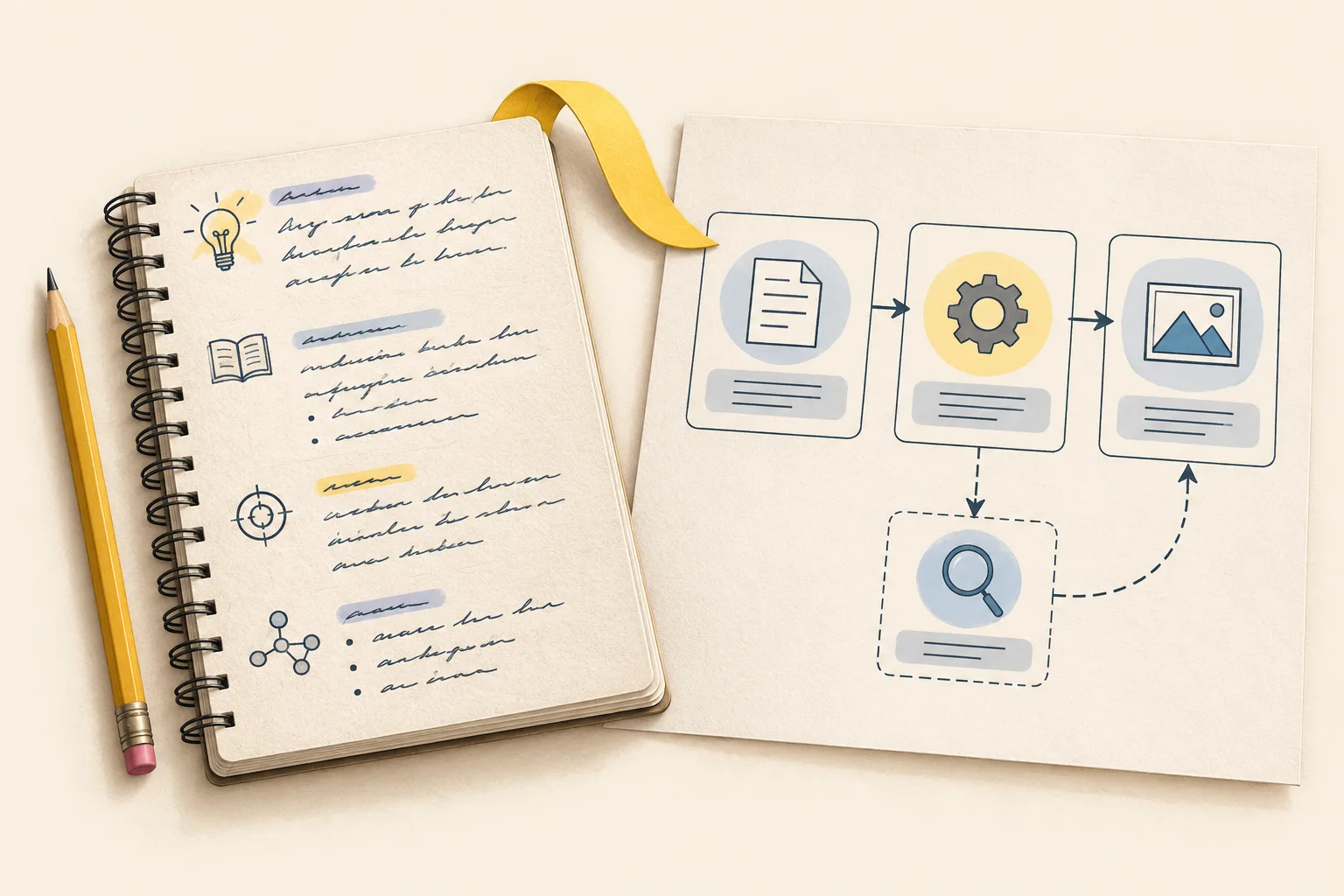
Searching for paper banana free access? On iPaperBanana, you can browse examples and prepare a figure brief without paying. Generating a new image requires sign-in, membership, and sufficient credits. As of October 30, 2026, each successful generation costs 30 credits. Preparing the brief first helps you use those credits deliberately.
What is PaperBanana used for?
PaperBanana is an academic figure tool for turning research context into methodology diagrams and statistical visuals. On this site, the workspace presents the workflow as PaperBanana and PaperVizAgent. It gives researchers a visual draft to review against their methods, rather than a verified scientific result.
For a methods section, that draft might explain a model architecture or an experimental pipeline. For a statistical figure, it might show a comparison between supplied measurements. Choose the figure's purpose before choosing colors or layout.
Paper banana free access: what can you do?
The useful distinction is between preparing a brief and generating an image. The public workspace lets you inspect examples, load an example into the form, and edit the inputs. These actions do not create a new figure or spend generation credits.
| Action | Access requirement |
|---|---|
| Browse research figure examples | Public, no payment required |
| Load an example and edit a brief | Public, no payment required |
| Generate a new figure | Sign-in, membership, and enough credits |
Account registration alone does not provide free generation credits. Check the current plans and credit allowances before subscribing. A credit allowance is not an image count: at 30 credits per successful generation, 100 credits cover three completed generations, with 10 credits remaining.
Prepare a brief before using credits
Write down the inputs, operations, and outputs your figure must contain. Define what arrows mean and which labels must match the manuscript. For charts, include units, category names, and the values you want displayed.
A useful starting brief is:
Show a microscopy workflow from image collection to preprocessing, cell segmentation, and measurement. Use left-to-right data flow. Label each stage exactly as written. Show manual quality review after segmentation. Do not add accuracy scores or unmeasured results.
This brief states both the intended structure and what the image must exclude. Replace the stages with your actual method. Keep the first draft focused on one question so you can judge whether it answers that question clearly.
How to use the iPaperBanana workspace
Open the PaperBanana research figure generator and prepare your inputs before generating:
- Select Methodology Diagram or Statistical Plot. Use Use this example if an existing example matches your task.
- Paste your method into Source context. Put the figure's message and layout instructions in Caption / intent.
- For a statistical plot, add your values in the optional Raw data (JSON) field.
- Open Advanced settings to choose the aspect ratio, 1K or 2K resolution, and color mode.
- Sign in with membership and enough credits, then select Generate figure draft. Inspect the result and use Open full size to save the image before leaving.
Check every label, arrow, and plotted value against your source. Generated charts can contain numerical errors. For an exact quantitative result, use a plotting workflow where the source data directly determines every mark. The research diagram review guide provides a separate checklist for methods figures.
PaperBanana free access FAQ
Can I generate without signing in?
No. You can prepare inputs publicly, but image generation requires an authenticated member account with enough credits.
Does loading an example cost credits?
No. Use this example fills the form. Generating a new draft is a separate action.
Is the generated figure ready for submission?
Treat it as a draft. Verify scientific meaning, text, and values, then check your journal's artwork requirements. Start by preparing one clear brief in the homepage workspace.